
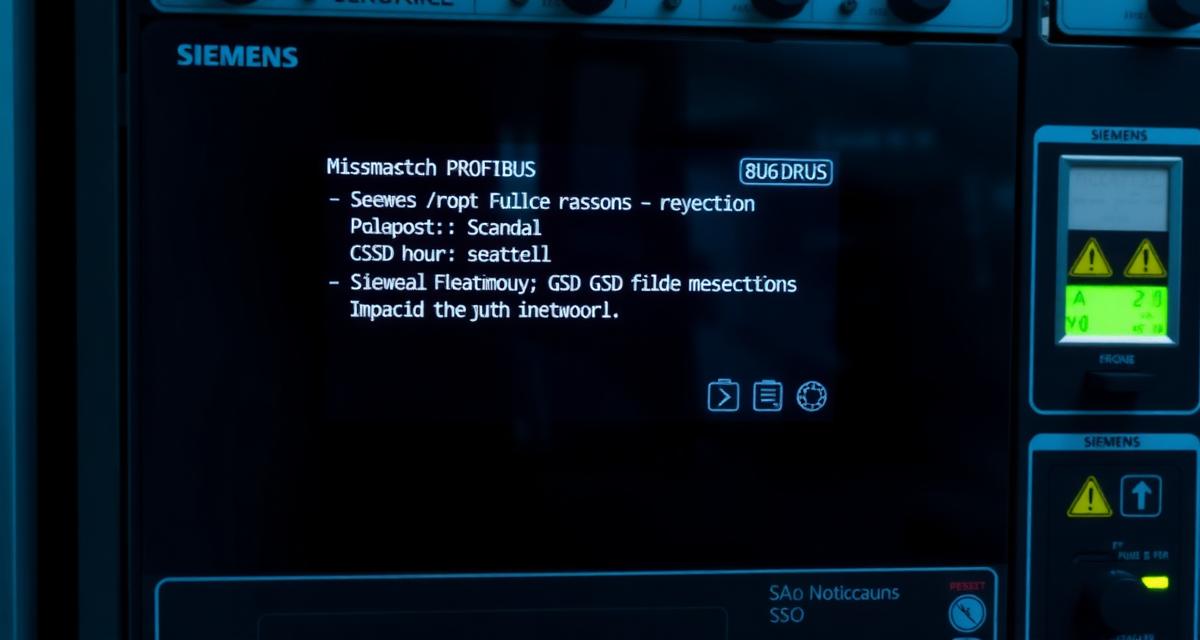
This Siemens PROFIBUS GSD file mismatch error TIA Portal fix guide walks through how to identify and resolve the correct GSD version before any configuration changes. Extract the Vendor ID from the PROFIBUS diagnostic data before searching for the GSD file — do not start with the physical device label. The label shows the manufacturer name and part number, which does not always match the Vendor ID embedded in the device’s GSD file, and searching for the GSD file by manufacturer name frequently returns multiple versions for the same device without clarity on which one matches your hardware revision. The Vendor ID (a 4-digit hexadecimal number embedded in every PROFIBUS device) is the unique identifier that maps to exactly one GSD file for each hardware revision. This guide covers how to extract the Vendor ID from TIA Portal’s online diagnostics, use it to locate the correct GSD file, and install it without generating a second error.
- What a GSD Mismatch Causes and How the Error Manifests
- Step 1: Extract the Vendor ID from PROFIBUS Online Diagnostic
- Step 2: Use Vendor ID to Locate the Correct GSD File
- Step 3: Install the GSD in TIA Portal Without Errors
- Step 4: Update the Hardware Configuration to Use the New GSD
- Legacy Path: GSD Installation in STEP 7 Classic (S7-300/S7-400)
- Technical Validation
- Frequently Asked Questions
What a GSD Mismatch Causes and How the Error Manifests
PROFIBUS DP slave devices communicate with the master (the S7 CPU) using a protocol that requires the master to know the device’s configuration parameters — number of input/output bytes, supported baud rates, module slots, and configuration data. This information is stored in the GSD (General Station Description) file, a plain-text file with a .GSD or .GSE extension.
When the GSD file installed in TIA Portal does not match the physical device’s firmware version, the master sends a configuration telegram that the slave either rejects (generating a bus error) or partially accepts (causing incorrect I/O mapping). The symptom in the TIA Portal diagnostic buffer is typically:
- PROFIBUS DP: SF LED on the CPU (System Fault)
- Diagnostic buffer entry: event class 16#02 with a PROFIBUS-related event number
- In STEP 7 HW Config online view: the DP slave shown with a red fault indicator
- In TIA Portal → Network view: the slave shown in an error state
The S7-300/S7-400 diagnostic buffer event code for PROFIBUS station failure is documented in the Siemens STEP 7 Error Code Reference (Document 770453).
Step 1: Extract the Vendor ID from PROFIBUS Online Diagnostic
The Vendor ID is embedded in the DP slave device’s identification data, readable via the online diagnostic interface without physical access to the device.
TIA Portal path (S7-1500 with PROFIBUS DP master module):
TIA Portal → Online → Network view →
Right-click DP slave (even if in error state) →
Online & Diagnostics →
Module diagnostics →
Slave identification data
The “Slave identification data” panel shows: – Vendor ID (Hersteller-ID): 4-digit hex value (e.g., 0x006E) – Device model: text string from the device – Hardware revision: hardware revision level – Software revision: firmware version of the slave
STEP 7 Classic path (S7-300/S7-400):
STEP 7 HW Config → Online → Module information →
Select DP slave → General → Identification
The Vendor ID displayed here is the authoritative identifier for the GSD search.
Alternative: Read Vendor ID from the GSD file if one is installed: If a (possibly wrong) GSD file is already installed for this device, open it in a text editor and look for the line:
Vendor_Name = "ManufacturerName"
GSD_Revision = 5
Ident_Number = 0x006E    ← This is the Vendor ID
Compare the Ident_Number in the installed GSD file with the Vendor ID read from the online diagnostics. If they differ, the installed GSD is for a different device.
Step 2: Use Vendor ID to Locate the Correct GSD File
With the Vendor ID extracted, locate the matching GSD file using the PROFIBUS & PROFINET International (PI) product database:
Path: profibus.com → Products → DP Product Database → Search by: Vendor ID (enter the 4-digit hex value)
The PI database returns all registered devices with that Vendor ID, including the GSD file download link for each hardware revision. Select the entry matching your device’s hardware revision (from the Slave identification data in Step 1).
Alternative source for Siemens DP slaves: Siemens Industry Online Support (SIOS) → search “GSD [device part number]” — Siemens provides GSD files for all Siemens PROFIBUS slaves directly.
Alternative source for third-party DP slaves: the manufacturer’s support download page. Search: “[Manufacturer name] [Device model] GSD file PROFIBUS.”
Verify the downloaded GSD: open in a text editor and confirm:
Vendor_Name = "Expected Manufacturer"
Model_Name = "Expected Device Model"
Ident_Number = [same Vendor ID as extracted in Step 1]
GSD_Revision = [revision level from slave identification data]
Step 3: Install the GSD in TIA Portal Without Errors
Prerequisites: – TIA Portal closed or the target project must not have any online sessions active – The GSD file must be in .GSD or .GSE format (not .XML — PROFIBUS uses GSD, PROFINET uses GSDML) – Administrative rights on the workstation
Installation path:
TIA Portal → Options →
Manage general station description files (GSD) →
Source path: [Browse to folder containing the .GSD file] →
Select the .GSD file → Install
Common installation errors:
| Error | Cause | Fix |
|---|---|---|
| “File format not recognized” | .XML GSDML file selected instead of .GSD | Use the PROFIBUS .GSD file, not the PROFINET .GSDML file |
| “Vendor ID already exists” | An older version of the same device’s GSD is installed | Both the old and new GSD are installed; proceed to Step 4 to select the new one |
| “GSD file for this Vendor ID is already installed with a higher revision” | Newer version was already present | No action needed if the newer GSD is compatible with the physical device |
| “Installation failed — access denied” | Insufficient permissions | Run TIA Portal as administrator for the installation |
After successful installation, the device appears in TIA Portal’s hardware catalog under Field devices → PROFIBUS DP → [Manufacturer] → [Device model] with the new revision identifier.
Step 4: Update the Hardware Configuration to Use the New GSD
Installing the GSD does not automatically update existing hardware configurations. If the project already has the DP slave configured with the old GSD, the project configuration must be updated:
Option A — Replace device in configuration (recommended for revision upgrade):
TIA Portal → Device view → Right-click DP slave →
Change device →
Select the new device revision from the updated hardware catalog →
Confirm
TIA Portal will attempt to preserve existing I/O mapping when changing device revisions. Review the I/O address mapping after the change to confirm it is correct.
Option B — Delete and re-add the device: Delete the existing DP slave from the network view, then add the new one from the hardware catalog. This approach loses any existing I/O address customization and requires reconfiguration.
Download and verify: After updating the configuration, download hardware configuration only to the controller (not the user program). Observe the PROFIBUS network in online mode — the DP slave should transition from red (fault) to green (normal) within 5 seconds of the configuration download.
For the complete S7-1200 and S7-1500 PROFINET equivalent of this procedure (GSDML files for PROFINET devices), see Siemens Profinet Station Failure 16#02:47:04 Diagnosis Fix. For the S7-1200 diagnostic buffer event interpretation, see Siemens S7-1200 Error Codes Complete List.
Legacy Path: GSD Installation in STEP 7 Classic (S7-300/S7-400)
For S7-300 and S7-400 systems using STEP 7 SIMATIC Manager (Classic), the GSD installation path is different:
STEP 7 SIMATIC Manager → Options →
Install GSD File →
Browse to the .GSD or .GSE file →
Install → Update catalog
After installation, open HW Config → Update catalog (if prompted) or close and reopen HW Config to refresh the hardware catalog. The new device appears in the hardware catalog under DP/PA field devices.
For S7-300 PROFIBUS DP diagnostic codes and the SF LED interpretation that indicates a PROFIBUS configuration error, see Siemens S7-300 Sf Led Error Diagnosis Step By Step Fix.
Technical Validation
GSD file installation procedure for TIA Portal from the Siemens TIA Portal V20 GSD files documentation. PROFIBUS error code reference for S7-300/S7-400 from the Siemens STEP 7 Error Code Reference Document 770453. Industrial networking training from NIC.edu PLC certification programs.
Frequently Asked Questions
Two GSD files are installed for the same device — one old revision and one new. Which one does TIA Portal use when I add the device to a new project?
TIA Portal uses the highest revision GSD file when you add a new device from the hardware catalog. The hardware catalog entry for the device shows the latest installed revision by default. If you need to configure an older revision for backward compatibility (e.g., when adding a device that will have older firmware), right-click the hardware catalog entry → Select revision → choose the specific revision needed. Both revisions remain available in the catalog after installation.
The Vendor ID on the PROFIBUS diagnostic matches the Vendor ID in the installed GSD file, but the connection still fails with a GSD-related error. What else could cause this?
If the Vendor ID matches but the connection still fails, the device revision has changed while keeping the same Vendor ID — a less common but valid scenario. In this case, the GSD_Revision field in the GSD file (a single integer: 1, 2, 3, etc.) does not match the device’s actual GSD revision reported in the slave identification data. Download the GSD file for the specific revision level matching the device’s hardware revision, install it, and use it for the configuration.
Can a PROFIBUS DP slave operate temporarily with an incorrect GSD file while the correct one is being sourced?
Sometimes. If the GSD file revision difference is minor (same Vendor ID, same module structure, only different optional parameters), the slave may communicate correctly despite the mismatch. This depends on the slave’s tolerance for configuration telegrams that do not match its stored GSD exactly. Most industrial Siemens DP slaves (ET 200S, ET 200M) are relatively tolerant; many third-party PROFIBUS devices are not and will refuse any connection with an unrecognized configuration record, regardless of how close the GSD revision is.